
Context Lens
Context Lens is the place where you inspect the context Knotic is preparing for a model call.
If Sessions is where you ask Knotic to work, Context Lens is where you check what Knotic knows, what it is about to send, and what should stay visible or hidden.
Context quality is usually the difference between a focused answer and a noisy one. This surface exists so context can be inspected before it becomes a blind prompt payload.
What Context Lens Is For
Use Context Lens when you want more control over context quality.
It helps you:
- inspect project knowledge from
.knotic/brain.loom - inspect session context from
.knotic/<chatId>.knot - hide, show, or remove entries
- preview the actual context blocks prepared for the model
- understand the current token budget before a request
How Context Lens Works
Context Lens combines two sources:
- global project knowledge: the reusable context in
.knotic/brain.loom - session context: the conversation-specific stream in
.knotic/<chatId>.knot
The UI estimates token usage and shows how much of the context budget is being used. This makes Context Lens useful when answers are too noisy, too expensive, or based on stale context.
There is also an optional reviewer chat. The reviewer can help inspect and clean context, but that reviewer flow is license-gated. Normal browsing, previewing, and visibility controls work without it.
When you use the context reviewer or context agent on Knotic-managed inference, Knotic credits are consumed based on actual inference usage. The credit cost varies with usage.
Do not treat the reviewer chat as required for normal use. The core value of Context Lens is still available through manual inspection, visibility controls, and preview.
How To Use Context Lens
- Open Context Lens with
Ctrl+Shift+L. - Review the entries in global knowledge and session context.
- Hide or remove items that are no longer relevant.
- Use preview to inspect what Knotic would actually send.
- Go back to Sessions or Architect once the context looks clean.
This is especially useful before large prompts, long refactors, or follow-up turns where too much session history has accumulated.
How To Read The UI
The Context Lens view combines session context, global knowledge, token budget, model preview controls, and the reviewer area in a single workspace.
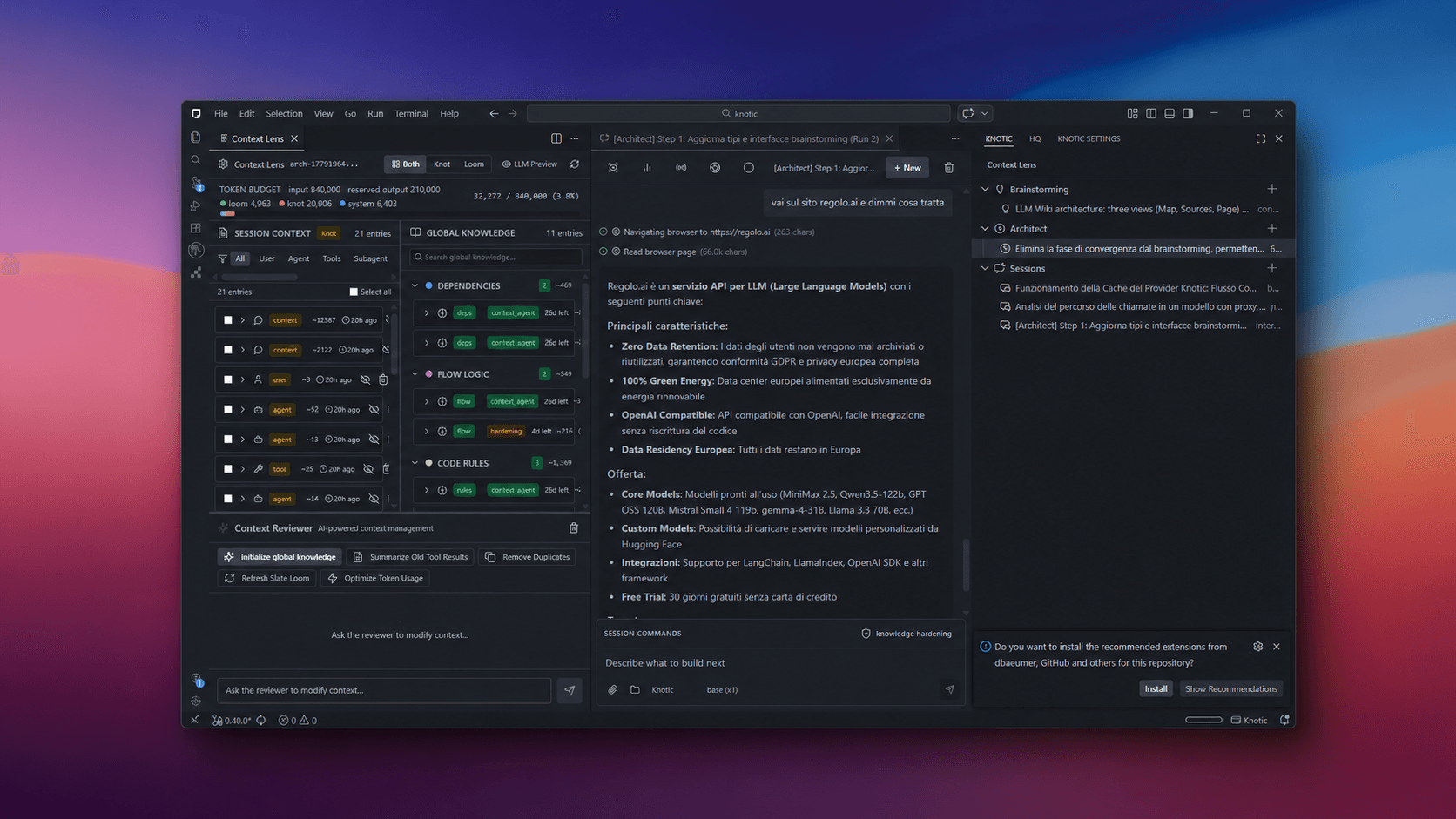
Context Lens is organized around a few clear panels:
- header: the entry point for the active chat and high-level controls
- global knowledge panel: items from
.knotic/brain.loom - session context panel: items from the active
.knotconversation - token budget bar: an estimate of how much context is currently in play
- preview panel: a direct preview of the context blocks
- reviewer chat: optional assistant for context cleanup
When To Use Context Lens
Open it when:
- Knotic seems to be using too much irrelevant context
- you want to understand why a response looks off-target
- you want to reduce token usage before a large request
- you are about to continue a long-running conversation and want to clean it first