
Settings & Inference
Artiforge License Key
Use this guide when you want to activate the Artiforge-managed Knotic runtime.
What this unlocks
Once the Artiforge license key is active in Knotic, you can use the tools and the inference provided by Knotic.
Prerequisites
Before you start, make sure you have:
- access to app.artiforge.ai
- a working Knotic desktop installation
- permission to use the Knotic-managed runtime for your workspace
Create the Artiforge Account
- Open app.artiforge.ai.
- Create your free account. No paid plan is required to generate the Knotic key.
- Sign in to the Artiforge app.
Run the Knotic Quickstart and Generate the Key
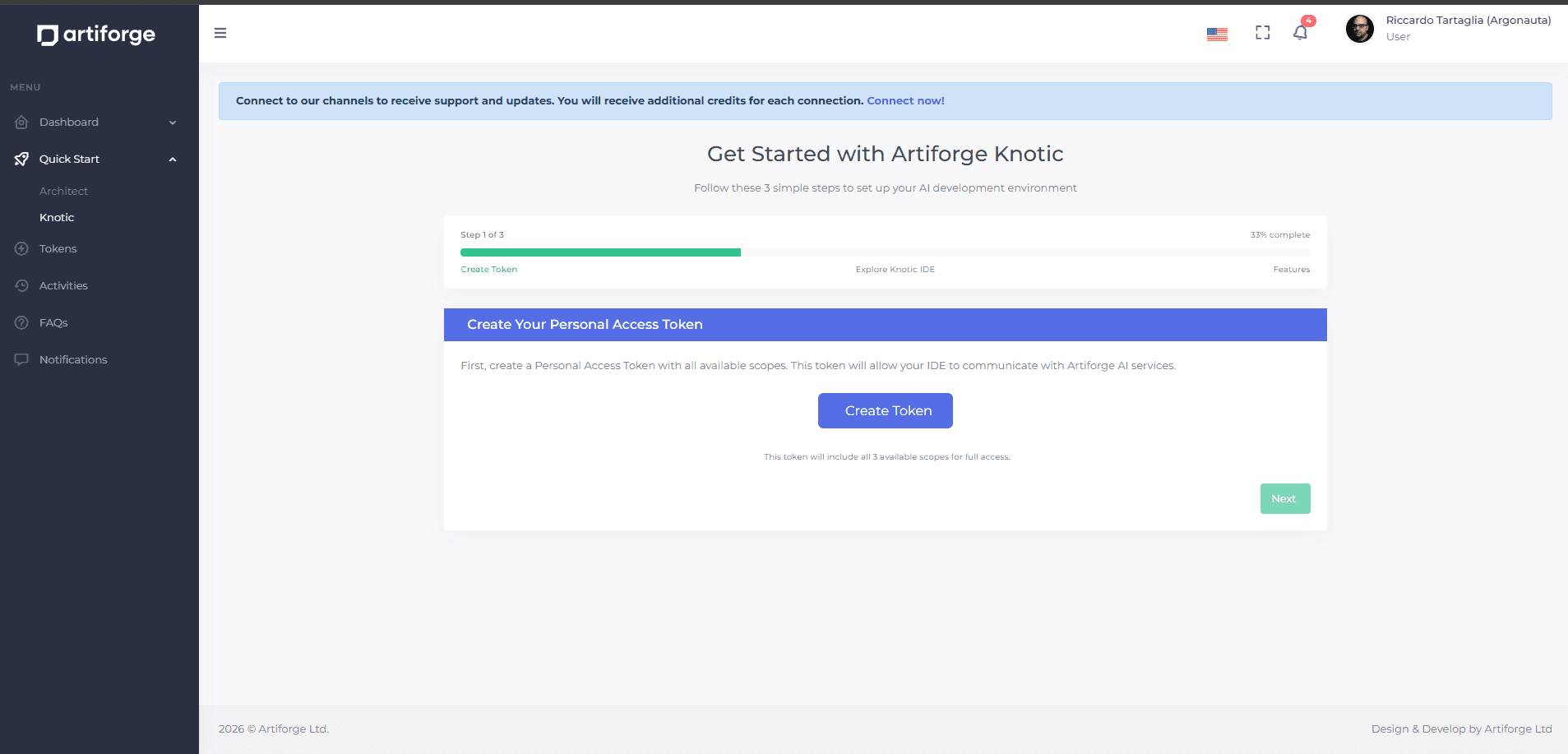
- Start the Knotic quickstart flow inside the Artiforge app.
- Generate a new Knotic key.
- Copy the generated key.
Artiforge quickstart and key generation
Inside the Artiforge quickstart, create the personal access token used by Knotic.
Insert the Key in Knotic
- Open Knotic.
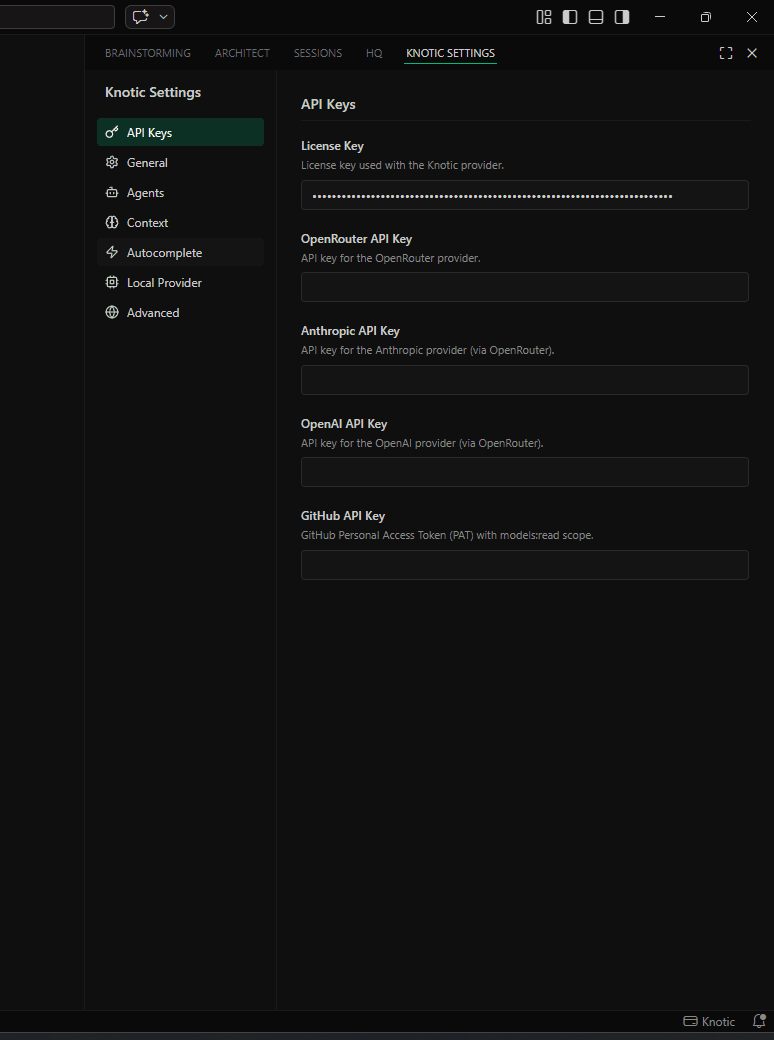
- Open
Knotic Settingsfrom the sidebar or pressCtrl+Alt+,. - Find the Knotic license key field.
- Paste the Artiforge key.
- Save or confirm the configuration if Knotic asks for it.
Paste the token in Knotic Settings
Insert the Artiforge-generated key into the License Key field under API Keys.
Verify the Setup
- Return to
Sessions. - Start a conversation.
- Send a simple request.
- Confirm that Knotic can use its own tools and inference without a license error.
If the key does not work
Check that the key was generated from the Knotic quickstart in Artiforge, that it was copied fully, and that the Knotic-managed runtime is the one you expect to use.