
A project assistant on your desktop.
Duckie shows you around Knotic, answers questions about your project and starts the workflow when you ask. Six skins, with multiple conversations per project.
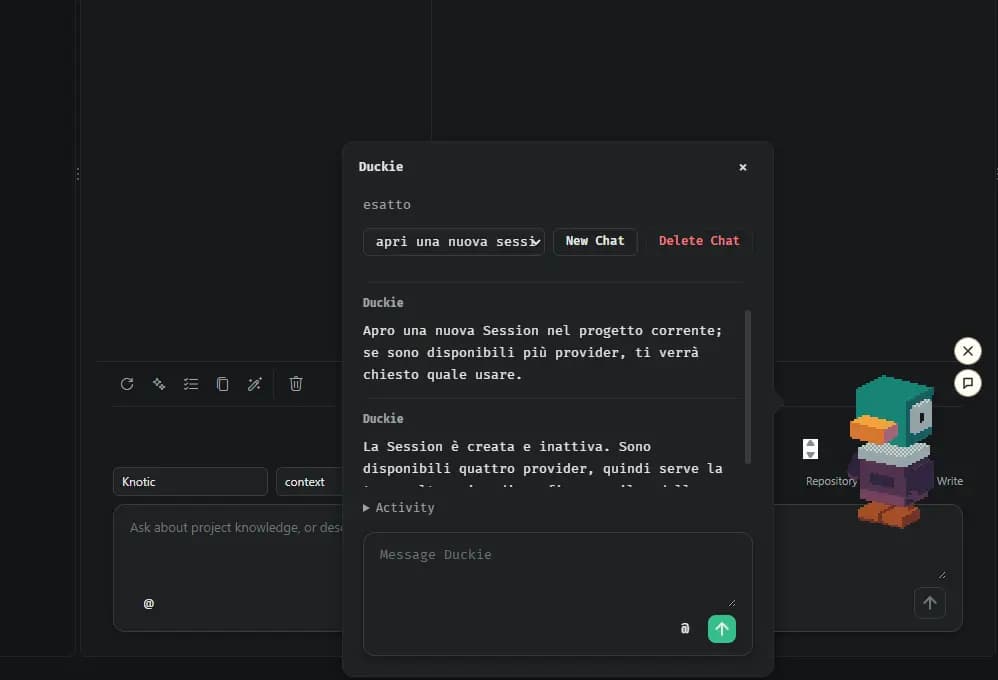
Working with Duckie
Take the onboarding tour
Choose Talk with Duckie on the project start screen. The resumable tour covers your key, memory, Issues, activities and Monitoring.
Ask about the project
Duckie Chat reads project files and memory, researches web pages and accepts file mentions and images. Keep multiple conversations per project.
Ask for an action
Open a surface, start or stop a Session, prepare a Blueprint, manage memory or ask about spending. Duckie acts through specific workflow tools.
Set a Goal
Give an objective. Review the proposed route, model and acceptance criteria, then confirm a credit limit and correction limit before work begins.
Review the outcome
Duckie coordinates delivery, tests and corrections within your limits, then reports. Stop at any time.
Duckie: the details
Open the details that matter to your workflow.
Six offline skins
Choose Knotic Duck, Standard, Explorer, Space, Rainy or Pixel. Drag the mascot to a useful place or hide it from the status bar.
Feedback while you work
Body language reflects working, waiting, completed and error states for the selected conversation.
A readable fallback
Without WebGL, Duckie uses a 2D mascot. On unsupported Wayland backends, the chat bubble appears in the workbench.
Know the boundaries
- Duckie does not directly edit files or run shell commands. Delegated coding Sessions use their normal Full Access.
- A Goal never starts automatically and proposals require your confirmation.
- Duckie has no voice interface.